Example: Create an Android Activity to display the addition result of two user-provided values using XML & Java in a LinearLayout.
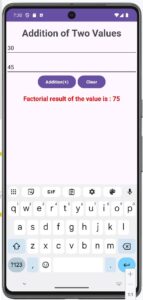
activity_main.xml

<?xml version="1.0" encoding="utf-8"?>

<!-- Main LinearLayout that arranges all controls vertically from top to bottom -->
<LinearLayout
    xmlns:android="http://schemas.android.com/apk/res/android"
    xmlns:app="http://schemas.android.com/apk/res-auto"
    xmlns:tools="http://schemas.android.com/tools"

    android:id="@+id/main"
    android:layout_width="match_parent"
    android:layout_height="match_parent"
    android:orientation="vertical"
    tools:context=".MainActivity">

<TextView
    android:layout_width="wrap_content"
    android:layout_height="wrap_content"
    android:layout_marginTop="15dp"
    android:text="Addition of Two Values"
    android:layout_gravity="center_horizontal"
    android:textSize="30sp"
    android:textStyle="bold">

</TextView>
    <!-- First EditText, used to enter the first numeric value -->
    <EditText
        android:id="@+id/editTextVal1"
        android:layout_width="match_parent"
        android:layout_height="wrap_content"
        android:layout_marginTop="5dp"
        android:hint="Enter First Value"/>

    <EditText
        android:id="@+id/editTextVal2"
        android:layout_width="match_parent"
        android:layout_height="wrap_content"
        android:layout_marginTop="15dp"
        android:hint="Enter Second Value"/>

    <!-- First Horizontal LinearLayout that arranges Addition and Clear buttons horizontally in one row -->
    <LinearLayout
        android:layout_width="wrap_content"
        android:layout_height="wrap_content"
        android:layout_gravity="center_horizontal"
        android:orientation="horizontal">

        <!-- Addition Button, used to calculate addition of entered numbers -->
        <Button
            android:id="@+id/calcAddBtn"
            android:layout_width="wrap_content"
            android:layout_height="wrap_content"
            android:textStyle="bold"
            android:text="Addition(+)" />

        <!-- Clear Button, used to clear both input boxes and the result -->
        <Button
            android:id="@+id/clearBtn"
            android:layout_width="wrap_content"
            android:layout_height="wrap_content"
            android:layout_marginLeft="05dp"
            android:textStyle="bold"
            android:text="Clear" />
    </LinearLayout>

    <!-- Result TextView, used to display the result of the selected arithmetic operation -->
    <TextView
        android:id="@+id/addresultTextView"
        android:layout_width="wrap_content"
        android:layout_height="wrap_content"
        android:layout_marginTop="15dp"
        android:textSize="20sp"
        android:layout_gravity="center_horizontal"
        android:textColor="@color/red"
        android:textStyle="bold"/>

</LinearLayout>


MainActivity.java

package com.example.myapplication2;

import android.os.Bundle;
import android.view.View;
import android.widget.EditText;
import android.widget.Button;
import android.widget.TextView;

import androidx.appcompat.app.AppCompatActivity;

public class MainActivity extends AppCompatActivity
{

    @Override
    protected void onCreate(Bundle savedInstanceState)
    {
        // Call parent onCreate method
        super.onCreate(savedInstanceState);
        // Load activity_main.xml
        setContentView(R.layout.activity_main);


        // Declares three EditText variables for numeric input
        EditText editTextVal4, editTextVal5;

        // Declares two Button variables for addition operations and clearing the controls
        Button calcAddBtn1, clearBtn1;

        // Declares TextView variable for displaying the result
        TextView addresultTextView1;


        // Connects FirstvalEtext with the first EditText in XML
        editTextVal4 = findViewById(R.id.editTextVal1);
        editTextVal5 = findViewById(R.id.editTextVal2);

        // Connects calcsiBtn with first button in XML
        calcAddBtn1 = findViewById(R.id.calcAddBtn);

        // Connects clearBtn1 with second button in XML
        clearBtn1 = findViewById(R.id.clearBtn);

        addresultTextView1 = findViewById(R.id.addresultTextView);

        // Sets focus on editTextVal EditText when the Activity loads
        editTextVal4.requestFocus();


        // Executes when calcFactBtn button is clicked
        calcAddBtn1.setOnClickListener(new View.OnClickListener()
        {
            @Override
            public void onClick(View v)
            {
                // Gets first value from EditText and converts it to integer
                int val1 = Integer.parseInt(editTextVal4.getText().toString());
                int val2 = Integer.parseInt(editTextVal5.getText().toString());
                int result= val1+val2;

                // Displays the Factorial result in TextView
                addresultTextView1.setText("Factorial result of the value is : " + result);
            }
        });


        // Executes when Clear button is clicked
        clearBtn1.setOnClickListener(new View.OnClickListener()
        {
            @Override
            public void onClick(View v)
            {
                // Clears the first EditText
                editTextVal4.setText("");
                editTextVal5.setText("");

                // Clears the result TextView
                addresultTextView1.setText("  ");


                // Returns cursor focus to the first EditText
                editTextVal4.requestFocus();
            }
        });


    }   // End of onCreate() method

}   // End of MainActivity class
Example: Create an Android Activity to display the Simple Interest of user-provided values using XML & Java in a LinearLayout.
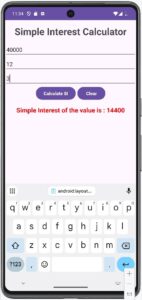
activity_main.xml

<?xml version="1.0" encoding="utf-8"?>

<!-- Main LinearLayout that arranges all controls vertically from top to bottom -->
<LinearLayout
    xmlns:android="http://schemas.android.com/apk/res/android"
    xmlns:app="http://schemas.android.com/apk/res-auto"
    xmlns:tools="http://schemas.android.com/tools"

    android:id="@+id/main"
    android:layout_width="match_parent"
    android:layout_height="match_parent"
    android:orientation="vertical"
    tools:context=".MainActivity">

<TextView
    android:layout_width="wrap_content"
    android:layout_height="wrap_content"
    android:layout_marginTop="15dp"
    android:text="Simple Interest Calculator"
    android:layout_gravity="center_horizontal"
    android:textSize="30sp"
    android:textStyle="bold">

</TextView>
    <!-- First EditText, used to enter the first numeric value -->
    <EditText
        android:id="@+id/editTextPr"
        android:layout_width="match_parent"
        android:layout_height="wrap_content"
        android:layout_marginTop="15dp"
        android:hint="Enter Principal Value"/>

    <!-- Second EditText, used to enter the second numeric value -->
    <EditText
        android:id="@+id/editTextRate"
        android:layout_width="match_parent"
        android:layout_height="wrap_content"
        android:hint="Enter Rate Value"/>

    <!-- Third EditText, used to enter the third numeric value -->
    <EditText
        android:id="@+id/editTextTime"
        android:layout_width="match_parent"
        android:layout_height="wrap_content"
        android:hint="Enter Time  Value" />

    <!-- First Horizontal LinearLayout that arranges Add, Subtract, Multiply and Divide buttons horizontally in one row -->
    <LinearLayout
        android:layout_width="wrap_content"
        android:layout_height="wrap_content"
        android:layout_gravity="center_horizontal"
        android:orientation="horizontal">

        <!-- SI Button, used to calculate SI of entered numbers -->
        <Button
            android:id="@+id/calcSIBtn"
            android:layout_width="wrap_content"
            android:layout_height="wrap_content"
            android:textStyle="bold"
            android:text="Calculate SI" />

        <!-- Clear Button, used to clear both input boxes and the result -->
        <Button
            android:id="@+id/clearBtn"
            android:layout_width="wrap_content"
            android:layout_height="wrap_content"
            android:layout_marginLeft="05dp"
            android:textStyle="bold"
            android:text="Clear" />
    </LinearLayout>

    <!-- Result TextView, used to display the result of the selected arithmetic operation -->
    <TextView
        android:id="@+id/siresultTextView"
        android:layout_width="wrap_content"
        android:layout_height="wrap_content"
        android:layout_marginTop="15dp"
        android:textSize="20sp"
        android:layout_gravity="center_horizontal"
        android:textColor="@color/red"
        android:textStyle="bold"/>

</LinearLayout>


MainActivity.java

package com.example.myapplication2;

import android.os.Bundle;
import android.view.View;
import android.widget.EditText;
import android.widget.Button;
import android.widget.TextView;

import androidx.appcompat.app.AppCompatActivity;

public class MainActivity extends AppCompatActivity
{

    @Override
    protected void onCreate(Bundle savedInstanceState)
    {
        // Call parent onCreate method
        super.onCreate(savedInstanceState);
        // Load activity_main.xml
        setContentView(R.layout.activity_main);


        // Declares three EditText variables for numeric input
        EditText editTextPr1, editTextRate1, editTextTime1;

        // Declares two Button variables for SI operations and clearing the controls
        Button calcSIBtn1, clearBtn1;

        // Declares TextView variable for displaying the result
        TextView siresultTextView1;


        // Connects principalEtext with the first EditText in XML
        editTextPr1 = findViewById(R.id.editTextPr);

        // Connects rateEtext with the second EditText in XML
        editTextRate1 = findViewById(R.id.editTextRate);

        // Connects timeEtext with the third EditText in XML
        editTextTime1 = findViewById(R.id.editTextTime);


        // Connects calcsiBtn with first button in XML
        calcSIBtn1 = findViewById(R.id.calcSIBtn);

        // Connects clearBtn1 with second button in XML
        clearBtn1 = findViewById(R.id.clearBtn);

        siresultTextView1 = findViewById(R.id.siresultTextView);

        // Sets focus on Principal EditText when the Activity loads
        editTextPr1.requestFocus();


        // Executes when calcSIBtn button is clicked
        calcSIBtn1.setOnClickListener(new View.OnClickListener()
        {
            @Override
            public void onClick(View v)
            {
                // Gets first value from EditText and converts it to integer
                int p = Integer.parseInt(editTextPr1.getText().toString());

                // Gets second value from EditText and converts it to integer
                int r = Integer.parseInt(editTextRate1.getText().toString());

                // Gets third value from EditText and converts it to integer
                int t = Integer.parseInt(editTextTime1.getText().toString());
                // calculate SI
                int si = (p*r*t)/100;

                // Displays the SI result in TextView
                siresultTextView1.setText("Simple Interest of the value is : " + si);
            }
        });


        // Executes when Clear button is clicked
        clearBtn1.setOnClickListener(new View.OnClickListener()
        {
            @Override
            public void onClick(View v)
            {
                // Clears the first EditText
                editTextPr1.setText("");

                // Clears the second EditText
                editTextRate1.setText("");

                // Clears the second EditText
                editTextTime1.setText("");

                // Clears the result TextView
                siresultTextView1.setText("  ");


                // Returns cursor focus to the first EditText
                editTextPr1.requestFocus();
            }
        });


    }   // End of onCreate() method

}   // End of MainActivity class
Example: Create an Android Activity to display the Factorial Result of user-provided values using XML & Java in a LinearLayout.
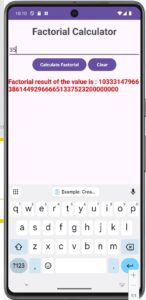
activity_main.xml


<?xml version="1.0" encoding="utf-8"?>

<!-- Main LinearLayout that arranges all controls vertically from top to bottom -->
<LinearLayout
    xmlns:android="http://schemas.android.com/apk/res/android"
    xmlns:app="http://schemas.android.com/apk/res-auto"
    xmlns:tools="http://schemas.android.com/tools"

    android:id="@+id/main"
    android:layout_width="match_parent"
    android:layout_height="match_parent"
    android:orientation="vertical"
    tools:context=".MainActivity">

<TextView
    android:layout_width="wrap_content"
    android:layout_height="wrap_content"
    android:layout_marginTop="15dp"
    android:text="Factorial Calculator"
    android:layout_gravity="center_horizontal"
    android:textSize="30sp"
    android:textStyle="bold">

</TextView>
    <!-- First EditText, used to enter the first numeric value -->
    <EditText
        android:id="@+id/editTextVal"
        android:layout_width="match_parent"
        android:layout_height="wrap_content"
        android:layout_marginTop="15dp"
        android:hint="Enter Principal Value"/>

    <!-- First Horizontal LinearLayout that arranges Add, Subtract, Multiply and Divide buttons horizontally in one row -->
    <LinearLayout
        android:layout_width="wrap_content"
        android:layout_height="wrap_content"
        android:layout_gravity="center_horizontal"
        android:orientation="horizontal">

        <!-- SI Button, used to calculate SI of entered numbers -->
        <Button
            android:id="@+id/calcFactBtn"
            android:layout_width="wrap_content"
            android:layout_height="wrap_content"
            android:textStyle="bold"
            android:text="Calculate Factorial" />

        <!-- Clear Button, used to clear both input boxes and the result -->
        <Button
            android:id="@+id/clearBtn"
            android:layout_width="wrap_content"
            android:layout_height="wrap_content"
            android:layout_marginLeft="05dp"
            android:textStyle="bold"
            android:text="Clear" />
    </LinearLayout>

    <!-- Result TextView, used to display the result of the selected arithmetic operation -->
    <TextView
        android:id="@+id/siresultTextView"
        android:layout_width="wrap_content"
        android:layout_height="wrap_content"
        android:layout_marginTop="15dp"
        android:textSize="20sp"
        android:layout_gravity="center_horizontal"
        android:textColor="@color/red"
        android:textStyle="bold"/>

</LinearLayout>


MainActivity.java


package com.example.myapplication2;

import android.os.Bundle;
import android.view.View;
import android.widget.EditText;
import android.widget.Button;
import android.widget.TextView;

import java.math.BigInteger;

import androidx.appcompat.app.AppCompatActivity;

public class MainActivity extends AppCompatActivity
{

    @Override
    protected void onCreate(Bundle savedInstanceState)
    {
        // Call parent onCreate method
        super.onCreate(savedInstanceState);
        // Load activity_main.xml
        setContentView(R.layout.activity_main);


        // Declares three EditText variables for numeric input
        EditText editTextVal1;

        // Declares two Button variables for SI operations and clearing the controls
        Button calcFactBtn1, clearBtn1;

        // Declares TextView variable for displaying the result
        TextView siresultTextView1;


        // Connects principalEtext with the first EditText in XML
        editTextVal1 = findViewById(R.id.editTextVal);

        // Connects calcsiBtn with first button in XML
        calcFactBtn1 = findViewById(R.id.calcFactBtn);

        // Connects clearBtn1 with second button in XML
        clearBtn1 = findViewById(R.id.clearBtn);

        siresultTextView1 = findViewById(R.id.siresultTextView);

        // Sets focus on editTextVal EditText when the Activity loads
        editTextVal1.requestFocus();


        // Executes when calcFactBtn button is clicked
        calcFactBtn1.setOnClickListener(new View.OnClickListener()
        {
            @Override
            public void onClick(View v)
            {
                // Gets first value from EditText and converts it to integer
                int p = Integer.parseInt(editTextVal1.getText().toString());

                //double fact=1;
                BigInteger fact = BigInteger.ONE; //means like int fact=1
                int i;
                for (i = 1; i <= p; i++)
                {
                   //fact=fact*i; // for upto 16 value.
                    fact = fact.multiply(BigInteger.valueOf(i));// for even large value.
                }

                // Displays the Factorial result in TextView
                siresultTextView1.setText("Factorial result of the value is : " + fact);
            }
        });


        // Executes when Clear button is clicked
        clearBtn1.setOnClickListener(new View.OnClickListener()
        {
            @Override
            public void onClick(View v)
            {
                // Clears the first EditText
                editTextVal1.setText("");


                // Clears the result TextView
                siresultTextView1.setText("  ");


                // Returns cursor focus to the first EditText
                editTextVal1.requestFocus();
            }
        });


    }   // End of onCreate() method

}   // End of MainActivity class
Example : Write an Android application to validate username and password entered on a login form.
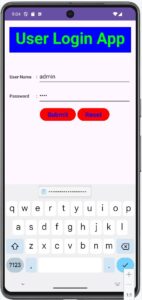
activity_main.xml


<?xml version="1.0" encoding="utf-8"?>
<LinearLayout xmlns:android="http://schemas.android.com/apk/res/android"
    xmlns:app="http://schemas.android.com/apk/res-auto"
    xmlns:tools="http://schemas.android.com/tools"

    android:layout_width="match_parent"
    android:layout_height="match_parent"
    android:contentDescription="@string/app_name"
    android:orientation="vertical"
    tools:context=".MainActivity"

    android:padding="15dp"
    android:id="@+id/main">

    <TextView
        android:layout_width="match_parent"
        android:layout_height="80dp"
        android:ems="15"

        android:layout_marginTop="5dp"
        android:id="@+id/EdtTxtMsg"
        android:text="User Login App"
        android:textSize="50sp"
        android:textStyle="bold"
        android:textColor="@color/green"
        android:background="@color/blue"
        android:textAlignment="center"/>

    <TableRow
        android:layout_width="wrap_content"
        android:layout_height="50dp"
        android:layout_marginTop="50dp">

        <TextView
            android:layout_width="80dp"
            android:text="User Name"
            android:textStyle="bold">
        </TextView>

        <TextView
            android:layout_width="10dp"
            android:text=" :"
            android:textStyle="bold">
        </TextView>

        <EditText
            android:layout_width="wrap_content"
            android:layout_height="50dp"
            android:ems="15"

            android:id="@+id/EdtTxtUname"
            android:inputType="text"/>
    </TableRow>


    <TableRow
        android:layout_width="wrap_content"
        android:layout_height="50dp"
        android:layout_marginTop="10dp">

        <TextView
            android:layout_width="80dp"
            android:text="Password"
            android:textStyle="bold">
        </TextView>

        <TextView
            android:layout_width="10dp"
            android:text=" :"
            android:textStyle="bold">
        </TextView>

        <EditText
            android:layout_width="wrap_content"
            android:layout_height="50dp"
            android:ems="15"

            android:id="@+id/EdtTxtPass"
            android:inputType="textPassword"/>
    </TableRow>


    <TableRow
        android:layout_width="wrap_content"
        android:layout_height="wrap_content"
        android:layout_marginLeft="95dp"
        android:layout_marginTop="10dp">

        <Button
            android:layout_width="wrap_content"
            android:layout_height="wrap_content"

            android:id="@+id/BtnSub"
            android:backgroundTint="@color/red"
            android:text="Submit"
            android:textStyle="bold"
            android:textSize="20sp"
            android:layout_marginRight="05dp"
            android:textColor="@color/blue"/>

        <Button
            android:layout_width="wrap_content"
            android:layout_height="wrap_content"

            android:id="@+id/BtnRst"
            android:backgroundTint="@color/red"
            android:text="Reset"
            android:textStyle="bold"
            android:textSize="20sp"
            android:textColor="@color/blue"/>
    </TableRow>

</LinearLayout>


MainActivity.java

package com.example.myapplication2;

import android.os.Bundle;
import android.view.View;
import android.widget.Button;
import android.widget.EditText;
import android.widget.Toast;

import androidx.appcompat.app.AppCompatActivity;

public class MainActivity extends AppCompatActivity
{
    @Override
    protected void onCreate(Bundle savedInstanceState)
    {
        // Calls parent class onCreate method
        super.onCreate(savedInstanceState);

        // Loads activity_main.xml
        setContentView(R.layout.activity_main);


        // Declares EditText variables
        EditText EdtTxtUname1, EdtTxtPass1;

        // Declares Button variables
        Button BtnSub1, BtnRst1;


        // Connects username EditText with XML
        EdtTxtUname1 = findViewById(R.id.EdtTxtUname);

        // Connects password EditText with XML
        EdtTxtPass1 = findViewById(R.id.EdtTxtPass);

        // Connects Submit button with XML
        BtnSub1 = findViewById(R.id.BtnSub);

        // Connects Reset button with XML
        BtnRst1 = findViewById(R.id.BtnRst);


        // Sets cursor focus on username when application loads
        EdtTxtUname1.requestFocus();


        // Static username
        String staticUsername = "admin";

        // Static password
        String staticPassword = "12345";


        // Executes when Submit button is clicked
        BtnSub1.setOnClickListener(new View.OnClickListener()
        {
            @Override
            public void onClick(View v)
            {
                // Gets username entered by user
                String username = EdtTxtUname1.getText().toString().trim();

                // Gets password entered by user
                String password = EdtTxtPass1.getText().toString();


                // Checks whether username is empty
                if (username.isEmpty())
                {
                    EdtTxtUname1.setError("Please enter User Name");
                    EdtTxtUname1.requestFocus();
                    return;
                }


                // Checks whether password is empty
                if (password.isEmpty())
                {
                    EdtTxtPass1.setError("Please enter Password");
                    EdtTxtPass1.requestFocus();
                    return;
                }


                // Checks static username and password
                if (username.equals(staticUsername) && password.equals(staticPassword))
                {
                    // Displays successful login message
                    Toast.makeText(MainActivity.this,"Login Successful",Toast.LENGTH_SHORT).show();
                }
                else
                {
                    // Displays invalid login message
                    Toast.makeText(MainActivity.this,"Invalid User Name or Password",Toast.LENGTH_SHORT).show();

                    // Clears password
                    EdtTxtPass1.setText("");
                    EdtTxtUname1.setText("");
                    // Sets focus on username
                    EdtTxtUname1.requestFocus();
                }
            }
        });


        // Executes when Reset button is clicked
        BtnRst1.setOnClickListener(new View.OnClickListener()
        {
            @Override
            public void onClick(View v)
            {
                // Clears username
                EdtTxtUname1.setText("");

                // Clears password
                EdtTxtPass1.setText("");

                // Returns focus to username
                EdtTxtUname1.requestFocus();
            }
        });

    }   // End of onCreate()

}   // End of MainActivity
Example : An Android app for a simple calculator in a LinearLayout view.
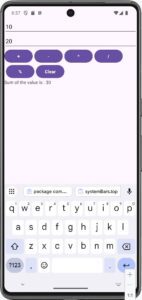
strings.xml
<string-array name="Gen">
     <item>Male</item>
     <item>Female</item>
     <item>Other</item>
</string-array>


activity_main.xml


<?xml version="1.0" encoding="utf-8"?>

<!-- Main LinearLayout that arranges all controls vertically from top to bottom -->
<LinearLayout
    xmlns:android="http://schemas.android.com/apk/res/android"
    xmlns:app="http://schemas.android.com/apk/res-auto"
    xmlns:tools="http://schemas.android.com/tools"

    android:id="@+id/main"
    android:layout_width="match_parent"
    android:layout_height="match_parent"
    android:orientation="vertical"
    tools:context=".MainActivity">


    <!-- First EditText, used to enter the first numeric value -->
    <EditText
        android:id="@+id/editTextNumber1"
        android:layout_width="match_parent"
        android:layout_height="wrap_content"
        android:hint="Enter number 1" />


    <!-- Second EditText, used to enter the second numeric value -->
    <EditText
        android:id="@+id/editTextNumber2"
        android:layout_width="match_parent"
        android:layout_height="wrap_content"
        android:hint="Enter number 2" />


    <!-- First Horizontal LinearLayout that arranges Add, Subtract, Multiply and Divide buttons horizontally in one row -->
    <LinearLayout
        android:layout_width="wrap_content"
        android:layout_height="wrap_content"
        android:orientation="horizontal">


        <!-- Addition Button, used to add the two entered numbers -->
        <Button
            android:id="@+id/addButton"
            android:layout_width="wrap_content"
            android:layout_height="wrap_content"
            android:textStyle="bold"
            android:text="+" />


        <!-- Subtraction Button, used to subtract the second number from the first number -->
        <Button
            android:id="@+id/subButton"
            android:layout_width="wrap_content"
            android:layout_height="wrap_content"
            android:layout_marginLeft="05dp"
            android:textStyle="bold"
            android:text="-" />


        <!-- Multiplication Button, used to multiply the two entered numbers -->
        <Button
            android:id="@+id/multButton"
            android:layout_width="wrap_content"
            android:layout_height="wrap_content"
            android:layout_marginLeft="05dp"
            android:textStyle="bold"
            android:text="*" />


        <!-- Division Button, used to divide the first number by the second number -->
        <Button
            android:id="@+id/divButton"
            android:layout_width="wrap_content"
            android:layout_height="wrap_content"
            android:layout_marginLeft="05dp"
            android:textStyle="bold"
            android:text="/" />

    </LinearLayout>


    <!-- Second Horizontal LinearLayout that arranges Modulus and Clear buttons horizontally in the second row -->
    <LinearLayout
        android:layout_width="wrap_content"
        android:layout_height="wrap_content"
        android:orientation="horizontal">


        <!-- Modulus Button, used to find the remainder after division -->
        <Button
            android:id="@+id/moddivButton"
            android:layout_width="wrap_content"
            android:layout_height="wrap_content"
            android:layout_marginLeft="05dp"
            android:textStyle="bold"
            android:text="%" />


        <!-- Clear Button, used to clear both input boxes and the result -->
        <Button
            android:id="@+id/clearButton"
            android:layout_width="wrap_content"
            android:layout_height="wrap_content"
            android:layout_marginLeft="05dp"
            android:textStyle="bold"
            android:text="Clear" />

    </LinearLayout>


    <!-- Result TextView, used to display the result of the selected arithmetic operation -->
    <TextView
        android:id="@+id/resultTextView"
        android:layout_width="wrap_content"
        android:layout_height="wrap_content" />


</LinearLayout>


MainActivity.java

// Defines the package in which MainActivity is stored
package com.example.myapplication2;


// Used for storing Activity state
import android.os.Bundle;

// Used for View and button click events
import android.view.View;

// Used for Button controls
import android.widget.Button;

// Used for EditText input controls
import android.widget.EditText;

// Used for displaying the result
import android.widget.TextView;


// Used for edge-to-edge screen display
import androidx.activity.EdgeToEdge;

// Base class for creating the Activity
import androidx.appcompat.app.AppCompatActivity;

// Used for system bar dimensions
import androidx.core.graphics.Insets;

// Used for handling View compatibility
import androidx.core.view.ViewCompat;

// Used for handling system window insets
import androidx.core.view.WindowInsetsCompat;


// Main Activity class of the application
public class MainActivity extends AppCompatActivity
{

    // This method executes when the Activity starts

    @Override   //replacing(overriding) a method that already exists in the parent class or interface and execute child class method.
    protected void onCreate(Bundle savedInstanceState)
    {
        // Calls the parent class onCreate() method
        super.onCreate(savedInstanceState);


        // Enables edge-to-edge screen display
        EdgeToEdge.enable(this);


        // Loads the activity_main.xml layout
        setContentView(R.layout.activity_main);


        // Handles the status bar and navigation bar spacing
        ViewCompat.setOnApplyWindowInsetsListener(
                findViewById(R.id.main), (v, insets) -> {

            // Gets the size of the system bars
            Insets systemBars =
                    insets.getInsets(
                            WindowInsetsCompat.Type.systemBars()
                    );

            // Adds padding so controls do not overlap system bars
            v.setPadding(
                    systemBars.left,
                    systemBars.top,
                    systemBars.right,
                    systemBars.bottom
            );

            // Returns the window insets
            return insets;
        });


        // Declares two EditText variables for numeric input
        EditText editText1, editText2;


        // Declares Button variables for arithmetic operations
        // and clearing the controls
        Button addButton1, subButton1, multButton1,
                divButton1, moddivButton1, clearButton;


        // Declares TextView variable for displaying the result
        TextView resultTextView;


        // Connects editText1 with the first EditText in XML
        editText1 = findViewById(R.id.editTextNumber1);


        // Connects editText2 with the second EditText in XML
        editText2 = findViewById(R.id.editTextNumber2);


        // Connects addButton1 with Addition button in XML
        addButton1 = findViewById(R.id.addButton);


        // Connects subButton1 with Subtraction button in XML
        subButton1 = findViewById(R.id.subButton);


        // Connects multButton1 with Multiplication button in XML
        multButton1 = findViewById(R.id.multButton);


        // Connects divButton1 with Division button in XML
        divButton1 = findViewById(R.id.divButton);


        // Connects moddivButton1 with Modulus button in XML
        moddivButton1 = findViewById(R.id.moddivButton);


        // Connects clearButton with Clear button in XML
        clearButton = findViewById(R.id.clearButton);


        // Connects resultTextView with result TextView in XML
        resultTextView = findViewById(R.id.resultTextView);


        // Sets cursor focus on the first EditText when Activity loads
        editText1.requestFocus();


        // Requests focus for the first EditText through touch mode
        editText1.requestFocusFromTouch();


        // ----------------------------------------------------
        // ADDITION BUTTON CODE
        // ----------------------------------------------------

        // Executes when Addition (+) button is clicked
        addButton1.setOnClickListener(new View.OnClickListener()
        {
            @Override
            public void onClick(View v)
            {
                // Gets first value from EditText and converts it to integer
                int num1 =
                        Integer.parseInt(
                                editText1.getText().toString()
                        );


                // Gets second value from EditText and converts it to integer
                int num2 =
                        Integer.parseInt(
                                editText2.getText().toString()
                        );


                // Adds the two numbers
                int sum = num1 + num2;


                // Displays addition result in TextView
                resultTextView.setText(
                        "Sum of the value is : " + sum
                );
            }
        });


        // ----------------------------------------------------
        // SUBTRACTION BUTTON CODE
        // ----------------------------------------------------

        // Executes when Subtraction (-) button is clicked
        subButton1.setOnClickListener(new View.OnClickListener()
        {
            @Override
            public void onClick(View v)
            {
                // Gets first value and converts it to integer
                int num1 =
                        Integer.parseInt(
                                editText1.getText().toString()
                        );


                // Gets second value and converts it to integer
                int num2 =
                        Integer.parseInt(
                                editText2.getText().toString()
                        );


                // Subtracts second number from first number
                int sub = num1 - num2;


                // Displays subtraction result
                resultTextView.setText(
                        "Subtraction of the value is : " + sub
                );
            }
        });


        // ----------------------------------------------------
        // MULTIPLICATION BUTTON CODE
        // ----------------------------------------------------

        // Executes when Multiplication (*) button is clicked
        multButton1.setOnClickListener(new View.OnClickListener()
        {
            @Override
            public void onClick(View v)
            {
                // Gets first value and converts it to integer
                int num1 =
                        Integer.parseInt(
                                editText1.getText().toString()
                        );


                // Gets second value and converts it to integer
                int num2 =
                        Integer.parseInt(
                                editText2.getText().toString()
                        );


                // Multiplies the two numbers
                int mult = num1 * num2;


                // Displays multiplication result
                resultTextView.setText(
                        "Multiplication of the value is : " + mult
                );
            }
        });


        // ----------------------------------------------------
        // DIVISION BUTTON CODE
        // ----------------------------------------------------

        // Executes when Division (/) button is clicked
        divButton1.setOnClickListener(new View.OnClickListener()
        {
            @Override
            public void onClick(View v)
            {
                // Gets first value and converts it to integer
                int num1 =
                        Integer.parseInt(
                                editText1.getText().toString()
                        );


                // Gets second value and converts it to integer
                int num2 =
                        Integer.parseInt(
                                editText2.getText().toString()
                        );


                // Divides first number by second number
                int div = num1 / num2;


                // Displays division result
                resultTextView.setText(
                        "Division of the value is : " + div
                );
            }
        });


        // ----------------------------------------------------
        // MODULUS BUTTON CODE
        // ----------------------------------------------------

        // Executes when Modulus (%) button is clicked
        moddivButton1.setOnClickListener(new View.OnClickListener()
        {
            @Override
            public void onClick(View v)
            {
                // Gets first value and converts it to integer
                int num1 =
                        Integer.parseInt(
                                editText1.getText().toString()
                        );


                // Gets second value and converts it to integer
                int num2 =
                        Integer.parseInt(
                                editText2.getText().toString()
                        );


                // Finds remainder after division
                int mdiv = num1 % num2;


                // Displays modulus result
                resultTextView.setText(
                        "Modular Division of the value is : " + mdiv
                );
            }
        });


        // ----------------------------------------------------
        // CLEAR BUTTON CODE
        // ----------------------------------------------------

        // Executes when Clear button is clicked
        clearButton.setOnClickListener(new View.OnClickListener()
        {
            @Override
            public void onClick(View v)
            {
                // Clears the first EditText
                editText1.setText("");


                // Clears the second EditText
                editText2.setText("");


                // Clears the result TextView
                resultTextView.setText("  ");


                // Returns cursor focus to the first EditText
                editText1.requestFocus();
            }
        });


    }   // End of onCreate() method


}   // End of MainActivity class
Example : Create an Activity in an Android App to display the selected Color in an EditText when a user selects a color name from a Spinner/Dropdown box using XML & Java in a LinearLayout View.
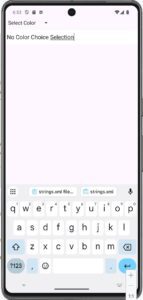
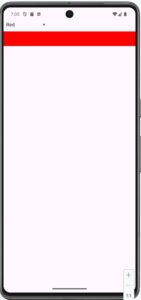
activity_main.xml


<?xml version="1.0" encoding="utf-8"?>
<LinearLayout xmlns:android="http://schemas.android.com/apk/res/android"
    xmlns:tools="http://schemas.android.com/tools"

    android:layout_width="match_parent"
    android:layout_height="match_parent"
    android:contentDescription="@string/app_name"
    android:orientation="vertical"
    tools:context=".MainActivity"

    android:padding="50dp"
    android:id="@+id/main">

    <Spinner
        android:id="@+id/spinner"
        android:layout_width="wrap_content"
        android:layout_height="wrap_content" />

    <EditText
        android:id="@+id/editText"
        android:layout_marginTop="10dp"
        android:layout_width="match_parent"
        android:layout_height="wrap_content"/>
</LinearLayout>


strings.xml


<string-array name="spinner_items">
    <item>Select Color</item>
    <item>Red</item>
    <item>Blue</item>
    <item>Green</item>
</string-array>


MainActivity.java


package com.example.myapplication2;

// Used for Activity state
import android.os.Bundle;

// Used for View controls
import android.view.View;

// Used for EditText
import android.widget.EditText;

// Used for Spinner
import android.widget.Spinner;

// Used to connect array data with Spinner
import android.widget.ArrayAdapter;

// Used to handle Spinner item selection
import android.widget.AdapterView;

// Used for predefined colors like RED, BLUE, GREEN
import android.graphics.Color;

// Required AndroidX classes
import androidx.activity.EdgeToEdge;
import androidx.appcompat.app.AppCompatActivity;
import androidx.core.graphics.Insets;
import androidx.core.view.ViewCompat;
import androidx.core.view.WindowInsetsCompat;


// Main Activity class
public class MainActivity extends AppCompatActivity
{

    // This method executes when the Activity starts
    @Override
    protected void onCreate(Bundle savedInstanceState)
    {
        // Calls the parent Activity onCreate() method
        super.onCreate(savedInstanceState);

        // Enables edge-to-edge screen display
        EdgeToEdge.enable(this);

        // Loads activity_main.xml layout
        setContentView(R.layout.activity_main);


        // Handles system bar spacing like status bar
        // and navigation bar
        ViewCompat.setOnApplyWindowInsetsListener(
                findViewById(R.id.main), (v, insets) -> {

                    // Gets the size of system bars
                    Insets systemBars =
                            insets.getInsets(
                                    WindowInsetsCompat.Type.systemBars()
                            );

                    // Adds padding so controls do not overlap system bars
                    v.setPadding(
                            systemBars.left,
                            systemBars.top,
                            systemBars.right,
                            systemBars.bottom
                    );

                    // Returns the insets
                    return insets;
                });


        // Creates an ArrayAdapter and gets Spinner items
        // from spinner_items array in strings.xml
        ArrayAdapter<CharSequence> spinnerAdapter =
                ArrayAdapter.createFromResource(
                        this,
                        R.array.spinner_items,
                        android.R.layout.simple_spinner_item
                );


        // Sets the layout of Spinner dropdown items
        spinnerAdapter.setDropDownViewResource(
                android.R.layout.simple_spinner_dropdown_item
        );


        // Connects Java Spinner object with XML Spinner
        Spinner spinner = findViewById(R.id.spinner);


        // Attaches the adapter to the Spinner
        spinner.setAdapter(spinnerAdapter);


        // Connects Java EditText object with XML EditText
        EditText editText = findViewById(R.id.editText);


        // Executes when an item is selected from Spinner
        spinner.setOnItemSelectedListener(
                new AdapterView.OnItemSelectedListener() {

                    // Executes when the user selects an item
                    @Override
                    public void onItemSelected(
                            AdapterView<?> parent,
                            View view,
                            int position,
                            long id) {

                        // Gets the selected Spinner item as String
                        String selectedItem =
                                parent.getItemAtPosition(position)
                                        .toString();


                        // Checks whether Red is selected
                        if ("Red".equals(selectedItem))
                        {
                            // Clears the EditText
                            editText.setText("");

                            // Changes EditText background to Red
                            editText.setBackgroundColor(Color.RED);
                        }


                        // Checks whether Blue is selected
                        else if ("Blue".equals(selectedItem))
                        {
                            // Clears the EditText
                            editText.setText("");

                            // Changes EditText background to Blue
                            editText.setBackgroundColor(Color.BLUE);
                        }


                        // Checks whether Green is selected
                        else if ("Green".equals(selectedItem))
                        {
                            // Clears the EditText
                            editText.setText("");

                            // Changes EditText background to Green
                            editText.setBackgroundColor(Color.GREEN);
                        }


                        // Executes when no matching color is selected
                        else
                        {
                            // Displays a message in EditText
                            editText.setText(
                                    "No Color Choice Selection"
                            );

                            // Changes EditText background to White
                            editText.setBackgroundColor(Color.WHITE);
                        }
                    }


                    // Executes when no Spinner item is selected
                    @Override
                    public void onNothingSelected(
                            AdapterView<?> parent)
                    {
                        // No action is required here
                    }

                });

    }   // End of onCreate()

}   // End of MainActivity class


NB : Here,
(i) ArrayAdapter, gets the color names from spinner_items in strings.xml.
(ii) spinner.setAdapter(), puts those items into the Spinner/Dropdown box.
(iii) setOnItemSelectedListener(), detects the selected Spinner item.
(iv) getItemAtPosition(position), gets the selected color name. if...else if checks whether the selected item is Red, Blue, or Green.
(v) setBackgroundColor(), changes/sets the background of the EditText.
Example : Create an Activity in an Android App to display the Typed Text in the selected color in an EditText when a user selects a color name from a Spinner/Dropdown box using XML & Java in a LinearLayout View.
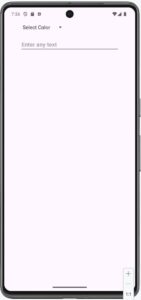
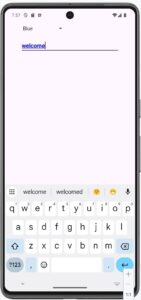
activity_main.xml

<?xml version="1.0" encoding="utf-8"?>
<LinearLayout xmlns:android="http://schemas.android.com/apk/res/android"
    xmlns:app="http://schemas.android.com/apk/res-auto"
    xmlns:tools="http://schemas.android.com/tools"

    android:layout_width="match_parent"
    android:layout_height="match_parent"
    android:contentDescription="@string/app_name"
    android:orientation="vertical"
    tools:context=".MainActivity"

    android:padding="50dp"
    android:id="@+id/main">

    <Spinner
        android:id="@+id/clrSpinner"
        android:layout_width="wrap_content"
        android:layout_height="wrap_content" />

    <EditText
        android:id="@+id/editText"
        android:layout_marginTop="20dp"
        android:layout_width="match_parent"
        android:layout_height="wrap_content"
        android:hint="Enter any text"
        android:textStyle="bold"/>

</LinearLayout>


strings.xml


<string-array name="spinner_items">
    <item>Select Color</item>
    <item>Red</item>
    <item>Blue</item>
    <item>Green</item>
</string-array>


MainActivity.java

package com.example.myapplication2;


// Used to store Activity state
import android.os.Bundle;


// Used for View objects
import android.view.View;

// Used for EditText control
import android.widget.EditText;

// Used for Spinner control
import android.widget.Spinner;

// Used to connect array data with Spinner
import android.widget.ArrayAdapter;

// Used to handle Spinner item selection
import android.widget.AdapterView;

// Used for colors such as RED, BLUE, GREEN and BLACK
import android.graphics.Color;


// Used for edge-to-edge screen display
import androidx.activity.EdgeToEdge;

// Base class for the Activity
import androidx.appcompat.app.AppCompatActivity;

// Used for system bar spacing
import androidx.core.graphics.Insets;

// Used for handling View compatibility
import androidx.core.view.ViewCompat;

// Used for handling system window insets
import androidx.core.view.WindowInsetsCompat;


// Main Activity class
public class MainActivity extends AppCompatActivity
{

    // This method executes when the Activity starts
    @Override
    protected void onCreate(Bundle savedInstanceState)
    {
        // Calls the parent class onCreate() method
        super.onCreate(savedInstanceState);


        // Enables edge-to-edge screen display
        EdgeToEdge.enable(this);


        // Loads activity_main.xml file on the screen
        setContentView(R.layout.activity_main);


        // Creates an ArrayAdapter and gets Spinner items
        // from spinner_items array of strings.xml
        ArrayAdapter<CharSequence> spinnerAdapter =
                ArrayAdapter.createFromResource(
                        this,
                        R.array.spinner_items,
                        android.R.layout.simple_spinner_item
                );


        // Sets the layout for the Spinner dropdown items
        spinnerAdapter.setDropDownViewResource(
                android.R.layout.simple_spinner_dropdown_item
        );


        // Connects Java Spinner object with clrSpinner of XML
        Spinner spinner = findViewById(R.id.clrSpinner);


        // Connects the ArrayAdapter with Spinner
        spinner.setAdapter(spinnerAdapter);


        // Connects Java EditText object with editText of XML
        EditText editText = findViewById(R.id.editText);


        // Executes when an item is selected from the Spinner
        spinner.setOnItemSelectedListener(
                new AdapterView.OnItemSelectedListener()
                {

                    // Executes when user selects an item
                    @Override
                    public void onItemSelected(
                            AdapterView<?> parent,
                            View view,
                            int position,
                            long id)
                    {

                        // Gets the selected Spinner item
                        // and converts it into String
                        String selectedItem =
                                parent.getItemAtPosition(position).toString();


                        // Checks whether Red is selected
                        if ("Red".equals(selectedItem))
                        {
                            // Changes EditText text color to Red
                            editText.setTextColor(Color.RED);
                        }


                        // Checks whether Blue is selected
                        else if ("Blue".equals(selectedItem))
                        {
                            // Changes EditText text color to Blue
                            editText.setTextColor(Color.BLUE);
                        }


                        // Checks whether Green is selected
                        else if ("Green".equals(selectedItem))
                        {
                            // Changes EditText text color to Green
                            editText.setTextColor(Color.GREEN);
                        }


                        // Executes if Red, Blue or Green is not selected
                        else
                        {
                            // Changes EditText text color to Black
                            editText.setTextColor(Color.BLACK);
                        }

                    }


                    // Executes when no Spinner item is selected
                    @Override
                    public void onNothingSelected(AdapterView<?> parent)
                    {
                        // No action is performed
                    }

                });


    }   // End of onCreate() method


}   // End of MainActivity class


NB : Here,
(i) ArrayAdapter, gets the color names from spinner_items in strings.xml.
(ii) spinner.setAdapter(), puts those items into the Spinner/Dropdown box.
(iii) setOnItemSelectedListener(), detects the selected Spinner item.
(iv) getItemAtPosition(position), gets the item selected by the user from the Spinner.
(v) setTextColor(), change/set the text color of the EditText.
Example : Create an Activity in an Android App to display the Text message in an EditText of the selected color when a user selects a color name from a Spinner/Dropdown box using XML & Java in a LinearLayout View.
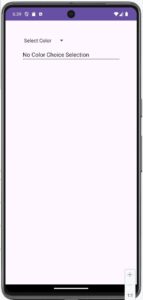
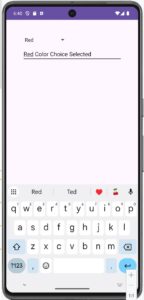
activity_main.xml


<?xml version="1.0" encoding="utf-8"?>
<LinearLayout xmlns:android="http://schemas.android.com/apk/res/android"
    xmlns:app="http://schemas.android.com/apk/res-auto"
    xmlns:tools="http://schemas.android.com/tools"

    android:layout_width="match_parent"
    android:layout_height="match_parent"
    android:contentDescription="@string/app_name"
    android:orientation="vertical"
    tools:context=".MainActivity"

    android:padding="50dp"
    android:id="@+id/LinLayInteExample">

    <Spinner
        android:id="@+id/spinner"
        android:layout_width="wrap_content"
        android:layout_height="wrap_content" />

    <EditText
        android:id="@+id/editText"
        android:layout_marginTop="10dp"
        android:layout_width="match_parent"
        android:layout_height="wrap_content"/>
</LinearLayout>


strings.xml

<resources>
    <string-array name="spinner_items">
        <item>Select Color</item>
        <item>Red</item>
        <item>Blue</item>
        <item>Green</item>
    </string-array>
</resources>


MainActivity.java

package com.example.myapplication2;

import android.os.Bundle;
import android.view.View;
import android.widget.EditText;
import android.widget.Spinner;
import android.widget.ArrayAdapter;
import android.widget.AdapterView;

import androidx.appcompat.app.AppCompatActivity;

public class MainActivity extends AppCompatActivity
{

    @Override
    protected void onCreate(Bundle savedInstanceState)
    {
        // Call parent onCreate method
        super.onCreate(savedInstanceState);

        // Load activity_main.xml
        setContentView(R.layout.activity_main);


        // Create adapter using spinner_items from strings.xml
        ArrayAdapter<CharSequence> spinnerAdapter =
                ArrayAdapter.createFromResource(
                        this,
                        R.array.spinner_items,
                        android.R.layout.simple_spinner_item
                );


        // Set layout for dropdown items
        spinnerAdapter.setDropDownViewResource(
                android.R.layout.simple_spinner_dropdown_item
        );


        // Connect Spinner with XML Spinner
        Spinner spinner = findViewById(R.id.spinner);


        // Attach adapter to Spinner
        spinner.setAdapter(spinnerAdapter);


        // Connect EditText with XML EditText
        EditText editText = findViewById(R.id.editText);


        // Execute when an item is selected from Spinner
        spinner.setOnItemSelectedListener(
                new AdapterView.OnItemSelectedListener()
                {

                    @Override
                    public void onItemSelected(
                            AdapterView<?> parent,
                            View view,
                            int position,
                            long id)
                    {
                        // Get selected Spinner item
                        String selectedItem =
                                parent.getItemAtPosition(position).toString();


                        // Check whether Red is selected
                        if ("Red".equals(selectedItem))
                        {
                            editText.setText(
                                    "Red Color Choice Selected"
                            );
                        }

                        // Check whether Blue is selected
                        else if ("Blue".equals(selectedItem))
                        {
                            editText.setText(
                                    "Blue Color Choice Selected"
                            );
                        }

                        // Check whether Green is selected
                        else if ("Green".equals(selectedItem))
                        {
                            editText.setText(
                                    "Green Color Choice Selected"
                            );
                        }

                        // Execute when no matching color is selected
                        else
                        {
                            editText.setText(
                                    "No Color Choice Selection"
                            );
                        }
                    }


                    // Executes when no Spinner item is selected
                    @Override
                    public void onNothingSelected(AdapterView<?> parent)
                    {
                        // No action
                    }

                });


    }   // End of onCreate() method

}   // End of MainActivity class

0 Comments